

Adding and Editing Chords
Harmonybeam provides several ways to add and edit chords, with both context-aware intelligent suggestions and simple diatonic and non-diatonic palettes. Click on a chord block’s chord symbol to open the Chord Picker to replace that chord, or click the + button between two chords or after the last chord to add a new chord.
Rest blocks
Section titled “Rest blocks”Rest blocks create pauses between chords without changing the selected rhythm pattern. Use the rest button next to the chord add button to insert one, type r in the Input Bar, or hover over a chord’s delete area and choose the rest button to convert that chord into a rest. Rests can be moved, resized, selected, copied, pasted, and deleted like chord blocks. Clicking a rest turns it back into a regular chord block.
Lock states
Section titled “Lock states”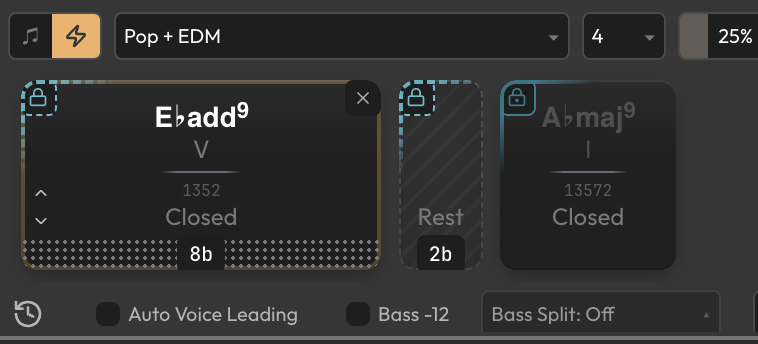
Hover a chord or rest block and click the lock icon in the top-left corner to cycle through three states. Unlocked is the normal state and allows the block to be replaced or resized. Shape Lock keeps the block length while allowing the chord identity to change, which is useful when you want to preserve a rhythmic structure while generating new harmony. Full Lock keeps both the block length and chord identity, so generators will leave it in place; global transposition and voicing changes can still affect it.
Shape Lock and Full Lock are especially useful together with rest blocks. For example, you can build a custom structure with unusual block lengths and pauses, Shape Lock the chord blocks you want regenerated, Full Lock the rests or anchor chords, and then generate a new progression that keeps the structure intact.
Keyboard shortcuts
Section titled “Keyboard shortcuts”When the chord strip is focused, Cmd/Ctrl+A selects all blocks, Cmd/Ctrl+C copies, Cmd/Ctrl+V pastes, Cmd/Ctrl+X cuts, Cmd/Ctrl+D duplicates, and Backspace deletes the selected blocks. These shortcuts work in the chord strip as well as in the Input Bar.
Chord Picker
Section titled “Chord Picker”The Chord Picker is a radial wheel with two main pages as well as a set of advanced subcategories. Each wedge contains a chord. Click the outer zone of a wedge to select and confirm that chord directly, or click the inner zone (”…”) to modify it further.
Depending on the current page, the right-hand arc buttons offer additional options:
Arc buttons (All pages)
Section titled “Arc buttons (All pages)”- X button — Closes the Chord Picker. Same as clicking outside the opened Chord Wheel.
- MIDI Preview on Hover on/off — When enabled, automatically emits MIDI for instant preview when hovering a chord wedge on the wheel. Otherwise, the preview only plays when clicking on a wedge.
Smart page
Section titled “Smart page”Shows context-aware suggestions scored by a proprietary data model based on real music. The Smart page divides the wheel into two halves: The right half shows in-key (diatonic) suggestions, while the left half shows out-of-key (non-diatonic) suggestions.
Top Mode
Section titled “Top Mode”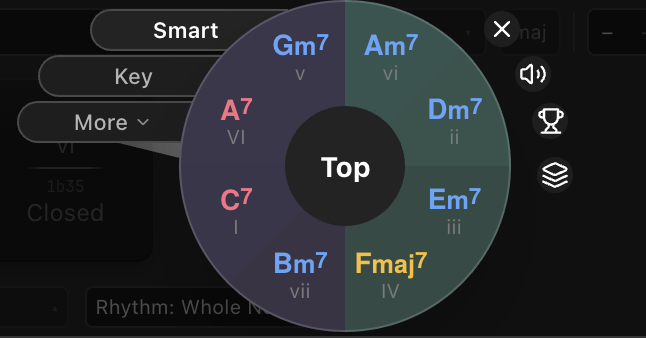
In Top Mode, suggestions are sorted and colored based on a score that represents how suitable a chord is for the given context. The top-scoring diatonic and non-diatonic suggestions are shown and their score is displayed in the center. Scoring takes into account the currently set key, the preceding chord, and, if available, the following chord.
Shuffle Mode
Section titled “Shuffle Mode”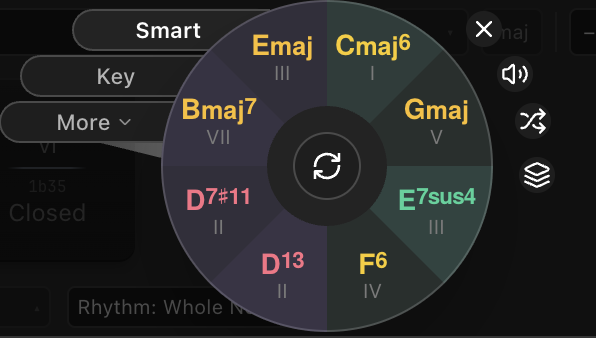
In Shuffle Mode, both diatonic and non-diatonic suggestions are inserted randomly into each half regardless of their score. This is useful when you want to experiment with ideas without getting influenced by the sorting in Top mode. Suggestions are still context-based and pass a minimum suitability threshold, but may be more unusual. In Shuffle Mode, the center button allows you to reshuffle the suggestions from all available ones. This way you can go through several dozens of suggestions in some contexts, even though the wheel only ever displays 4 per side.
Arc buttons (Smart page)
Section titled “Arc buttons (Smart page)”- Shuffle/Top Mode toggle — Switch between Top and Shuffle modes
- All Variants/Merge Variants toggle — When “Merge Variants” is enabled, chords with the same root and quality get merged to their top-scoring variant. This allows you to see a larger variety of suggestions and filter out chords that only have minor extension differences. For example, if the wheel shows both Cmaj7 and Cmaj9 as suggestions and CMaj7 has a higher score, then this will filter out Cmaj9 and replace it with another suggestion. Available both in Top and in Shuffle Mode.
Key page
Section titled “Key page”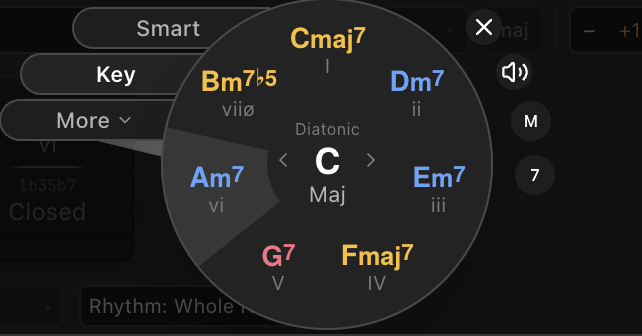
Shows the diatonic chords of the current key.
Clicking on the current key in the center lets you browse other keys, which will be considered as borrowed from.
Arc buttons (Key page)
Section titled “Arc buttons (Key page)”- Major/Natural minor/Melodic minor toggle — Switches the key mode between Major, Natural minor (Nm) and Melodic minor (Mm).
- Default extension toggle — Switches the extensions for the chords visible on the main Key page between triads (3), sevenths (7) and ninths (9). Other extensions are available via the Modifier Wheel (see below).
Advanced chord pages
Section titled “Advanced chord pages”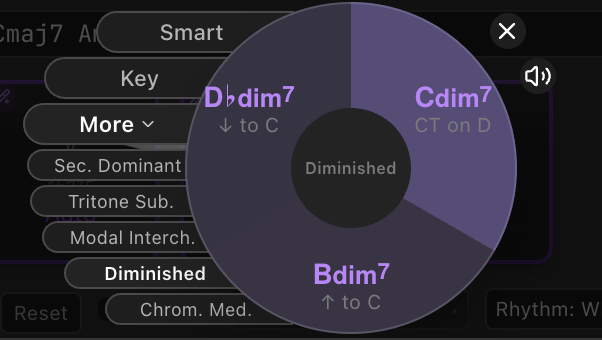
The Chord Picker also features sub-categories accessible via the buttons under More with commonly used substitutions, transitions and other harmonic techniques. They are included where relevant in Smart suggestions, but are also featured here by their concrete classification.
When replacing a chord or inserting a chord before an existing following chord, these pages become target-aware: They will prioritize options that lead into that exact chord. The score and wedge color then reflect how well a candidate fits both the preceding chord and the following target.
Roman labels on the suggestion pages are calculated from the current key and the final displayed chord symbol. This means non-diatonic and borrowed chords keep functional labels such as flat or sharp scale degrees, independent of the current spelling preference.
- Secondary Dominants — V/ii, V/iii, V/IV, etc.
- Modal Interchange — borrowed chords from parallel modes
- Tritone Substitutions — tritone subs of dominant chords
- Diminished Approaches — approach chords from above, below, or common-tone
- Chromatic Mediants — major/minor/augmented/dominant third-related chords
Modifier Wheel
Section titled “Modifier Wheel”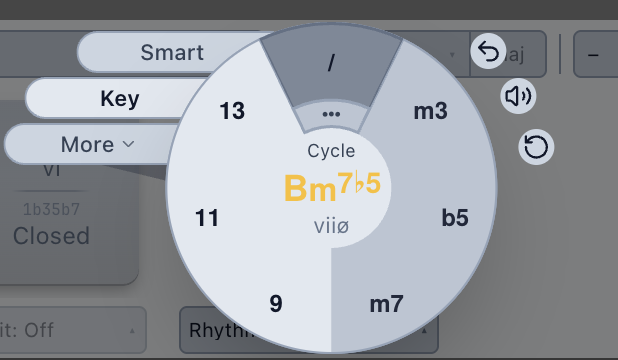
From any chord wedge on the Smart or Key pages, click the … in the inner zone of a chord wedge to open the Modifier Wheel. This lets you build complex chords via toggling extensions and alterations by hand. These are grouped into their appropriate interval sets or functions, meaning:
- Base quality: m3, M3, sus2, sus4
- 5th type: b5, 5, #5
- 7th type: m7, M7, 6, dim7
- Upper extension sets and their alterations: 9, 11, 13
- Slash bass modifier: Lets you set another note as the bass voice of a chord
For each of these sets, just like on the main Chord Wheel, you can click the … button to open a detail subwheel in which to audition and apply any modifier option. The Modifier Wheel will intelligently filter for legal combinations automatically and disable or remove options that are not relevant for the current context. Clicking on an option that is already active will remove it from the built chord.
Alternatively, you can also quickly cycle between all available variants by clicking on the main wedge area of a modifier set on the main Modifier Wheel. This also includes its removal where legal (on the 7, 9, 11 and 13 sets). When done, click on the chord in the center to confirm the chord configuration. This works on both the main wheel and any subwheel.
Arc buttons (Modifier Wheel)
Section titled “Arc buttons (Modifier Wheel)”- Reset — Undoes all changes made in the Modifier Wheel.
Voicing Picker
Section titled “Voicing Picker”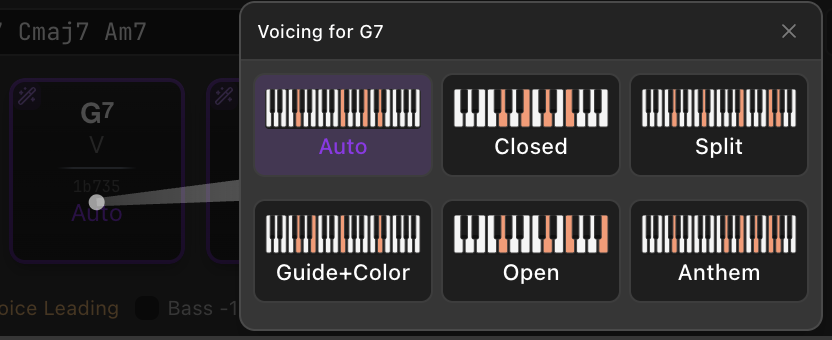
Click the voicing style badge on a chord block (e.g. “Closed”) to open the voicing picker. This shows the available voicing styles:
| Style | Description |
|---|---|
| Closed | Compact minimal voicing ordered by intervals |
| Anthem | Dense two-hand spread with doublings |
| Split | Drop 2 & 4-inspired voicing |
| Guide+Color | Guide tones with color extensions |
| Open | Wide but focused voicing |
An additional option Auto is shown when Automatic Voice Leading is enabled and you want to switch an overridden chord back to its automatically managed voicing.
The Voicing Picker also contains a Gesture tab for adding attack envelopes, strums, and arpeggios to the chord. See Chord Gestures for full details.
Related settings
Section titled “Related settings”On the Settings page, the following settings change how the Chord Picker behaves:
Key Wheel Ordering
Section titled “Key Wheel Ordering”Determines how the Key Wheel is ordered (when opening it via the Key page). The options are Sequential, Circle of Fifths and Circle of Fourths.
Default Chord Wheel Page
Section titled “Default Chord Wheel Page”Determines which page is opened by default when the Chord Picker is opened. Can be set to Smart or Key.