

Chord Gestures
A gesture adds an expressive attack to a chord block — the way its notes are spread out, ordered, and accented in time. With a gesture you can create organic attack envelopes, alternating strums, randomized round-robin plucks, or elaborate arpeggios with custom-ordered notes. Combined with the Pattern Editor, gestures allow for very complex sequences.
Opening the Gesture editor
Section titled “Opening the Gesture editor”The Gesture editor lives in the Voicing Picker. Click the voicing style badge on a chord block (e.g. “Closed”) to open the picker, then switch to the Gesture tab.
Gestures apply to whichever chords are currently selected. Select a single chord to edit just that chord, or select several chords to apply the same gesture to all of them at once. When the selection contains chords with different gesture settings, the controls show a “mixed” state; editing a control then applies the new value to all selected chords.
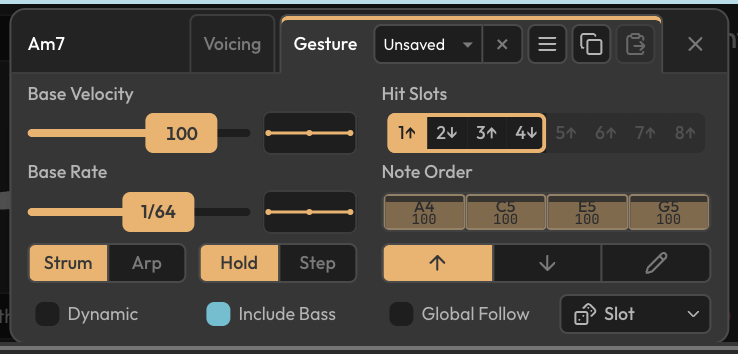
Base Velocity
Section titled “Base Velocity”The Base Velocity slider sets the chord’s overall velocity. This is the velocity used for every note of the gesture unless a velocity curve shapes it further (see Velocity and rate curves). New chord blocks start at the global Default Velocity setting.
Attack behavior
Section titled “Attack behavior”The Strum/Arp segmented control chooses how the gesture’s notes are spaced in time:
- Strum — the Base Rate sets the total time from the first note to the last.
- Arp — the Base Rate sets the interval between adjacent notes.
The Base Rate slider selects a note value (from 1/256T up to 1/4). The Dynamic checkbox changes how the rate is determined: instead of a fixed rate, the chord’s incoming velocity is mapped to attack speed (harder = faster, by default). The velocity-to-rate response can be shaped in the Rate Curve editor (see below).
Note gate
Section titled “Note gate”The Hold/Step control determines how long each note sustains:
- Hold — each note sustains for the remainder of the rhythm hit.
- Step — each attack group stops when the next group begins.
Hit Slots and round robin
Section titled “Hit Slots and round robin”A gesture’s note order is organized into Hit Slots — a row of up to eight slots, each holding its own note order. When a chord is triggered repeatedly, the slots cycle in a round-robin fashion, so consecutive hits can use different orders (for example, an up-strum followed by a down-strum).
Drag the bracket on the right of the slot strip to set the round-robin cycle length (1–8). Slots within the cycle play in order; the active slot is highlighted. Click a slot to edit its note order.
Note Order
Section titled “Note Order”Each Hit Slot has a note-order kind, chosen with the Up /Down /Custom control:
- Up — play the chord’s notes from lowest to highest.
- Down — play from highest to lowest.
- Custom — use a hand-authored order.
In Custom mode, the note blocks are shown in order and can be reordered by dragging (or with the Left/Right arrow keys). The bass note is shown as a separate block when Include Bass is off. Each note block also shows its per-note velocity, which reflects the velocity curve and velocity range.
Global Follow and Include Bass
Section titled “Global Follow and Include Bass”- Global Follow — shares this chord’s Hit Slot position with other chords that also have Global Follow enabled, so their round-robin cycles stay in step.
- Include Bass — when checked, the bass voice participates in the ordered attack. When unchecked, the bass plays together with the first ordered note instead of taking its own position in the sequence.
Velocity and rate curves
Section titled “Velocity and rate curves”Two curve editors shape the gesture over time. Each is opened by clicking the small curve thumbnail next to its control.
- Velocity Curve (next to Base Velocity) — shapes per-note velocity across the gesture. Presets include Even velocity, Fade in, Fade out, Dip in the middle, and Swell in the middle.
- Rate Curve (next to Base Rate) — when Dynamic is off, shapes the rate across the gesture (e.g. accelerate or decelerate). When Dynamic is on, it instead shapes the velocity-to-rate response.
Randomizing
Section titled “Randomizing”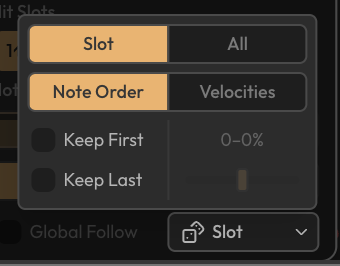
The Randomize control generates variations on the gesture:
- Scope — Slot randomizes the current Hit Slot only; All randomizes every slot.
- Operations — randomize the Note Order, the Velocities, or both.
- Keep First / Keep Last — when randomizing note order, optionally anchor the first or last note in place.
- Velocity range — the min–max range used when randomizing velocities.
The randomizer options are saved as user preferences, so they remain selected when you close and reopen the Gesture editor.
Copying and pasting
Section titled “Copying and pasting”Use the copy and paste buttons next to the preset dropdown to copy a chord’s gesture settings and paste them onto other selected chords.
Copy is also available for a multi-chord selection when every selected chord has the same active gesture. It is unavailable when the selection is mixed or Gesture is Off.
Gesture presets
Section titled “Gesture presets”The dropdown at the top of the Gesture tab stores gestures as presets. Factory presets are included (Strum 1, Strum 2, Piano 1, Piano 2, Arp 1, Arp 2); your own presets appear under Custom. Use Create new… to save the current gesture, and the preset menu to rename or delete user presets. Choosing Off (or the X on the dropdown) turns the gesture off for the selected chords.
MIDI keyswitch support
Section titled “MIDI keyswitch support”Gesture Hit Slots can be selected from your MIDI keyboard using keyswitches. By default the C through G keys of the configured Gesture Keyswitch Octave map to Hit Slots 1–8; holding a keyswitch selects that slot for as long as it is held. See MIDI Configuration and Controls for details.
Related settings
Section titled “Related settings”The Chord Block Subsection → Gesture Values setting displays a chord block’s active gesture values in the lower section of the block instead of note names or intervals. See The Main Interface.